Rollout Inline Controller Setup & Steam Input
Make dual-stick skating trustworthy on Xbox, PlayStation, and Steam Deck pads.
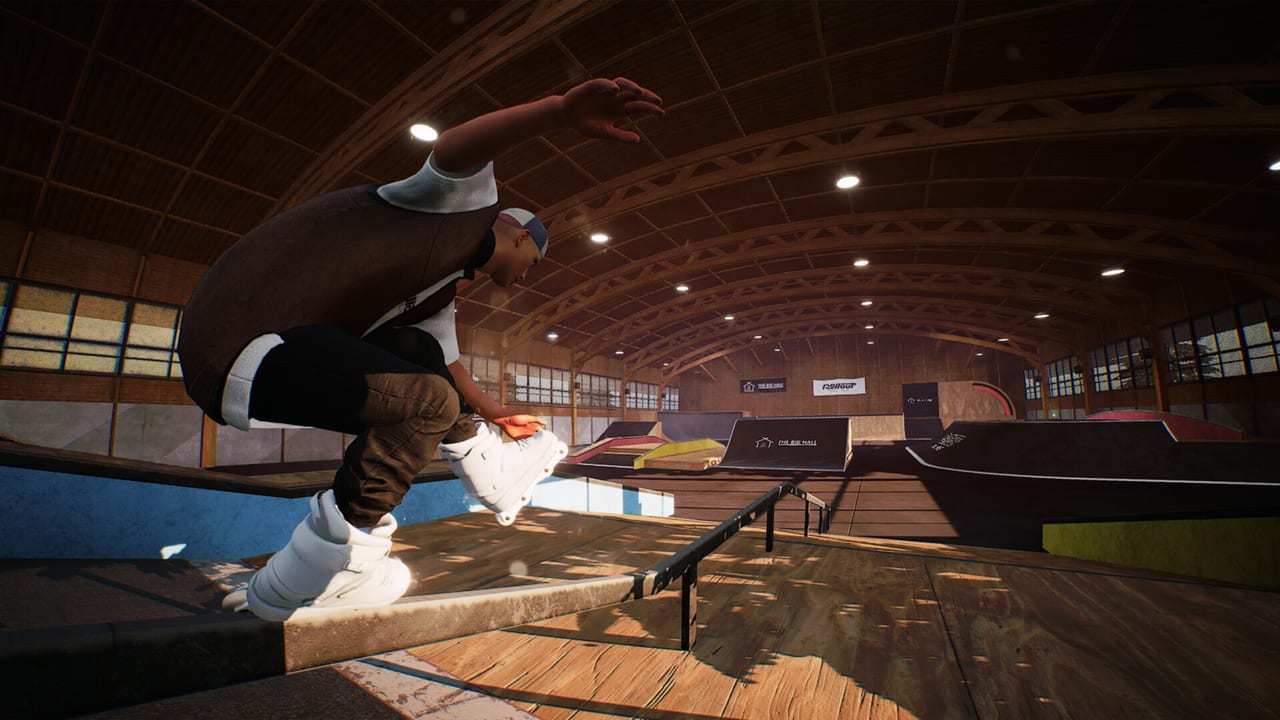
Rollout Inline is built for controllers. The Steam page states plainly that a controller is required and that keyboard and mouse are not supported. Dual-stick grinds and cess slides—each stick representing a foot—depend on clean analog input. This guide covers first-boot connection rules, recommended hardware, PlayStation pad caveats, Steam Input recovery, Steam Deck notes, and how to tell hardware issues apart from skill issues.
Parent index: Tools Hub. Specs and FPS: System Requirements.
Rule zero: connect before launch
Connect or wake your controller before starting the game. Hot-plugging after the title boots is a common source of dead sticks, missing vibration, or partial bindings. If you started a session bare-handed, quit fully, confirm the pad is alive in Steam’s Big Picture/controller overlay, then relaunch.
Recommended: Xbox controllers
An Xbox controller is recommended for the best experience, including force feedback. That recommendation matches the dual-stick design: consistent stick tension and rumble cues help sell grind locks and hard landings. If you own multiple pads, prefer the Xbox-class device for learning week one so you are not debugging adapters and muscle memory simultaneously.
Tips:
- Use a reliable USB cable when wireless interference is possible.
- Charge enough to survive long challenge sessions—mid-rail power drops feel like mysterious ragdolls.
- Keep default Steam Input simple while learning; fancy community layouts can wait.
DualShock / DualSense (PlayStation) pads
PlayStation controllers can work, but Steam lists DualShock and DualSense support as USB only. Prefer a wired USB connection from the start—especially while you calibrate—because wireless PlayStation pads are outside the officially listed support path and are a common Steam Input troubleshooting case.
Checklist for DS/DualSense:
- Quit the game.
- Connect over USB.
- Open Steam → game → controller settings / Steam Input.
- Enable Steam Input if the pad is unseen; try the opposite if double-mapping occurs.
- Reset to a default gamepad template before installing complex community profiles.
- Relaunch with the pad already connected.
- Test left-stick steer, right-stick jump, then a simple dual-stick grind on a short rail.
If face buttons work but sticks drift, calibrate in Steam or Windows, then retest deadzones. Dual-stick skating amplifies small drift because both feet are always “speaking.”
Steam Input philosophy for this game
Steam Input should make your pad look like a standard gamepad to Rollout Inline—not invent keyboard overlays. Avoid layouts that map skating to keys; KBM is unsupported for a reason. Also avoid aggressive gyro substitutes until you can already land Tier C grinds on sticks alone (see Trick Difficulty).
When a patch or Steam client update reshuffles bindings, return to this page’s checklist before rewriting Controls in your head.
Steam Deck Verified notes
Rollout Inline is Steam Deck Verified, which means the default Deck controls story is intended to work. Still verify:
- You are on a known-good Proton/runtime configuration Steam recommends for the title.
- Frame rate holds near your comfort target while dual-sticking—Deck performance ties into System Requirements.
- You did not accidentally apply a community layout meant for a different skating game.
Handheld play is excellent for practice loops; just remember challenge batches still expect precise foot placement.
Force feedback and optional feel settings
Xbox-class rumble helps some players feel grind contact. If vibration distracts you during cess slides, lower it—but do not confuse disabled rumble with broken grind detection. Optional in-game balancing and difficulty settings change mechanical strictness, not whether Steam sees your pad. Configure those after input is trustworthy, guided by Getting Started.
Separating pad problems from player problems
Try this five-minute lab on any launch map from Maps Overview:
- Left stick only: wide arcs, no jumps.
- Right stick only hops along a straight path.
- Neutral dual-stick grind on the shortest rail you can find.
- Repeat the grind three times without changing approach speed.
If step 1–2 fail intermittently, it is hardware/Steam Input. If step 1–2 succeed and step 3 fails identically every time, it is likely technique—visit Tricks and Grinds. If failures are random with stick stutter visible, return to FPS and overlay checks.
Overlays and background noise
Disable conflicting controller software, RGB tools that install their own input layers, and heavy overlays when diagnosing. Steam’s overlay is usually fine; third-party injectors less so. After a clean test, re-enable tools one at a time.
After setup: return to skating
When sticks feel honest, follow the practice plan on Controls and push a mild batch via Challenges and Progression. Keep this Tools page bookmarked for friends who buy mid-Early Access and arrive with a DualSense and optimism.
Official input-related patch notes will surface through Updates and Official Links. Until then, connect early, prefer Xbox when possible, USB for PlayStation troubleshooting, and let Steam Input be a translator—not a remix album.
Frequently Asked Questions
Quick answers for aggressive inline players.
Can I play with keyboard and mouse?
No. Rollout Inline requires a controller; KBM is unsupported.
Which controller is recommended?
An Xbox controller is recommended for comfort and force feedback.
My DualSense acts weird—what should I try first?
Quit the game, connect over USB, reset Steam Input to a default gamepad template, then relaunch with the pad already on.
Does Steam Deck work?
Yes—the game is Steam Deck Verified. Still confirm Steam Input and FPS during dual-stick play.
Where do I learn the stick roles after setup?
Read Controls and then Getting Started.